Setting up Transparent Proxy for Home Network
A guide on setting up a transparent proxy (TProxy) for a home network using OpenWrt and a Linux server to intercept and redirect network traffic.
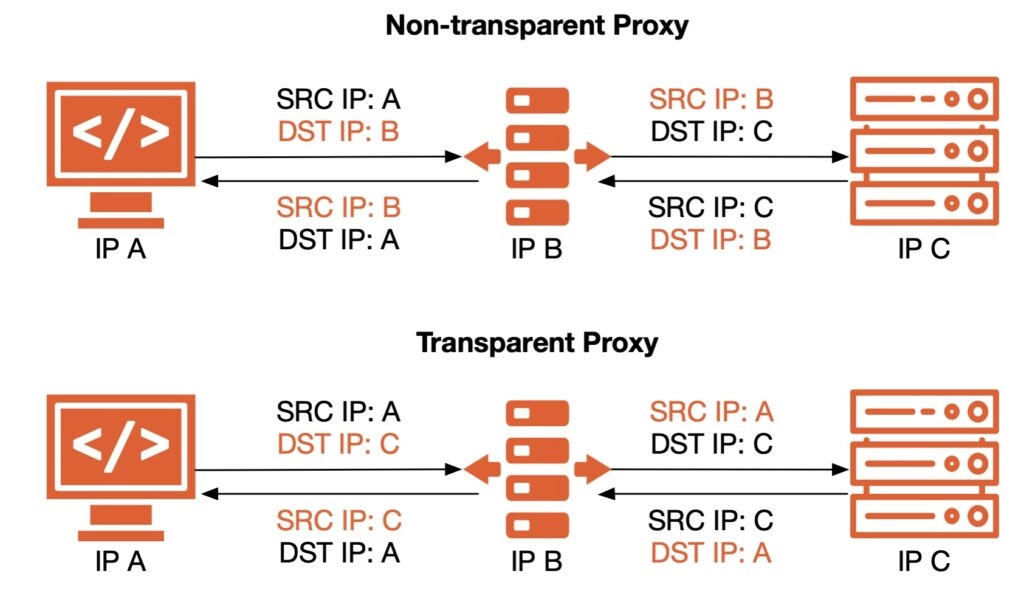
A transparent proxy (TProxy) allows you to intercept and redirect network traffic without requiring any configuration on the client devices. This is particularly useful for monitoring, filtering, or caching traffic on the network. In countries with strict internet regulations, a proxy is usually needed to access foreign websites. The traditional way is to configure the proxy on each device, but this is cumbersome and not user-friendly. A transparent proxy can solve this problem by redirecting all traffic through the proxy server without requiring any configuration on the client devices.
I set up a transparent proxy for my home network recently. This post documents the process. The setup is based on my home network environment, so it may not be suitable for everyone. But the general process should be similar.
Environment
- Router: Running OpenWrt. Will act as the main router.
- As the main router for the home network.
- LAN IP: 192.168.31.1
- Home Server: A headless Linux server. Currently running Ubuntu 24.04. Will act as the sideway router.
- Acts as the transparent proxy server.
- LAN IP: 192.168.31.241 (via DHCP static lease)
- Network: All devices in the home network are connected to the router.
Process Overview
We need to set the Home Server as the default gateway and DNS server for devices that require proxying. The general steps are:
- Configure the router: Through DHCP, set the Home Server as the default gateway and DNS server for devices that require proxying.
- Configure the Home Server: Set up TProxy to intercept and redirect traffic.
- Enable IP forwarding.
- Configure iptables to redirect the traffic to the tproxy server.
- Configure the proxy server to handle the traffic.
The real setup process is reversed, since you don’t want to lose internet access while setting up. So you actually need to set up the proxy server first, verify it works, then hijack traffic to it.
Set up the proxy server
I use mihomo(whoever came up with this name must be a genius) as the transparent proxy server. The setup step could be found on its wiki. The configuration process is straightforward; just follow the instructions. The important part is to enable TProxy mode, and set the listening ports. What I set up is:
- Tproxy server: Listening on port 7894.
- DNS server: Listening on port 5353. Running in fake-ip mode. It will return a fake-ip from the configured pool, or the real IP for domains excluded by the fake-ip filter. The proxy server will handle the traffic based on the IP and its routing rules.
Hijack traffic
We need to hijack the traffic from the local network to the public network, and redirect it to the proxy server.
- Enable IP forwarding
sysctl -w net.ipv4.ip_forward=1- Configure iptables
# Create a new chain for tproxy
iptables -t mangle -N TPROXY_CHAIN

# Exclude multicast and reserved destinations, including limited broadcast
iptables -t mangle -A TPROXY_CHAIN -d 224.0.0.0/3 -j RETURN
# Exclude incoming traffic with the proxy server's source IP
iptables -t mangle -A TPROXY_CHAIN -s 192.168.31.241 -j RETURN

# Leave DNS traffic for the NAT REDIRECT rules below
iptables -t mangle -A TPROXY_CHAIN -p udp --dport 53 -j RETURN
iptables -t mangle -A TPROXY_CHAIN -p tcp --dport 53 -j RETURN

# Mark TCP/UDP traffic and redirect it to TPROXY port
iptables -t mangle -A TPROXY_CHAIN -p tcp -j TPROXY --on-port 7894 --tproxy-mark 1
iptables -t mangle -A TPROXY_CHAIN -p udp -j TPROXY --on-port 7894 --tproxy-mark 1

# Apply TPROXY_CHAIN in PREROUTING
iptables -t mangle -A PREROUTING -s 192.168.0.0/16 ! -d 192.168.0.0/16 -j TPROXY_CHAIN

# Redirect DNS traffic to port 5353
iptables -t nat -A PREROUTING -p udp --dport 53 -j REDIRECT --to-ports 5353
iptables -t nat -A PREROUTING -p tcp --dport 53 -j REDIRECT --to-ports 5353- Set up IP rule and routing
# Add a local route for TPROXY
ip route add local 0.0.0.0/0 dev lo table 100

# For packets marked with TPROXY mark 1, look up table 100
ip rule add fwmark 1 lookup 100
After these steps, you should be able to access the internet through the proxy server. Manually set the DNS server and default gateway of your device to the proxy server’s IP, and check if it works.
Set up DHCP on the router
Now we can configure the router to automatically set the DNS server and default gateway for devices in the home network. Depending on your router, the steps may vary. But the general idea is to set the DHCP options to make sure the devices will use the proxy server as the default gateway and DNS server.
Problem
- IPv6: As you can see, the setup only works for IPv4. The setup requires the proxy server to be set as the default gateway for devices that require proxying, while the main router is still the default gateway for other devices. This can be done via DHCP for IPv4,
and should work for DHCPv6(DHCPv6 does not assign default gateways; IPv6 uses Router Advertisements (RA)). Android relied on SLAAC when I wrote this post; Google has since added DHCPv6 Prefix Delegation support. IPv6 allows multiple default routers, but there is no DHCPv6 equivalent of the IPv4 gateway option to choose one per device.- Solution: I can prevent the router from sending IPv6 DNS in RA by disabling “Announce DNS servers” in OpenWrt. This way, Android devices using the advertised DNS settings will use IPv4 DNS, which is set by DHCP. Then I can wipe out AAAA records returned from the DNS server, so that devices will only use IPv4 for proxied domains. This is not a perfect solution, but it works for me since I don’t use IPv6 much, and devices that don’t require proxying can still use IPv6 with a DNS server that returns AAAA records.
Solution B: Throw away your Android devices🤣- Solution C: (Update in Oct 2026) Seems like I can use source-based policy routing on my router for devices that need proxying, with IPv6 forwarding and proxying set up on the Home Server. This feels like a real solution.
Comments
Comments use GitHub for sign-in. They load automatically as you reach this section.